Alrbea Times Assistant

Explains the system step by step

Hi 👋 I'm the Alrbea Times assistant. Ask me anything: installation, settings, changing the design, Ramadan, or ordering.

Answers from the user guide and system features. Need a person? WhatsApp

Product guide

Get to know the Alrbea Times device before you order and when it arrives: what it is, what is in the box, how to connect it, and what to do if the internet drops.

1

What is the device?

A programmed, ready device that turns your screen into a prayer-times display

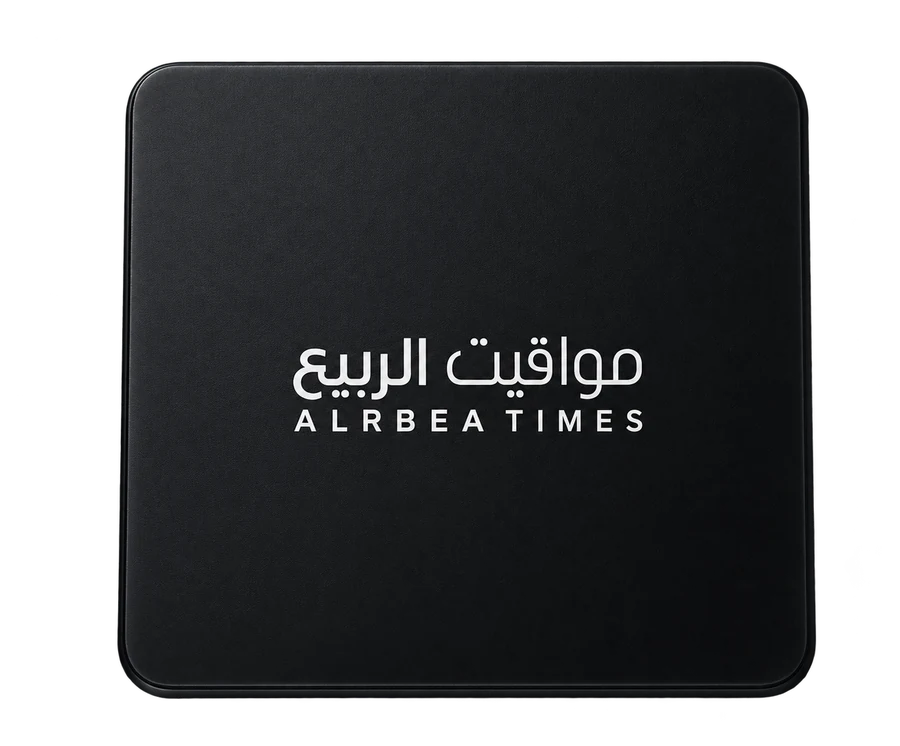
The Alrbea Times device arrives pre-programmed and ready to run. Connect it to your screen and it shows prayer times, the countdown to the next prayer, the clock, the Hijri and Gregorian dates, adhkar and mosque announcements, in Islamic templates in portrait or landscape.

The Alrbea Times device

▶ Watch the device video on YouTube

  • For mosques, and for homes and offices that want to turn a compatible screen into a prayer-times screen.
  • Control it with a mouse or remote from the screen itself, and from your phone through the phone-to-screen link.
2

What is in the box

As stated on the product page in the store

  • The Alrbea Times device, pre-programmed and ready to run.
Note: The screen is not included in the box: the device connects to a TV screen you already have.

Product page in the store

3

Connect the device to the screen (ports)

HDMI, then power

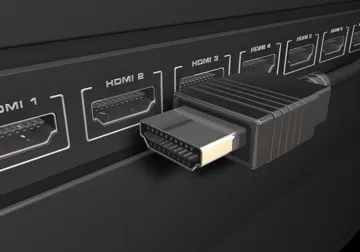
  1. Connect the device to the screen’s HDMI port. It works on ordinary TV screens of all sizes, in landscape or portrait.
  2. Connect it to a stable, safe power source.
HDMI ports on the back of a TV
4

First start-up

From the box to a working screen

  1. Connect the device to the screen, then to power.
  2. Wait a few seconds; it is pre-programmed, so prayer times, adhan and iqamah appear on the screen right away.
  3. Press the “Alrbea Times” logo at the bottom of the screen with a mouse or the remote to open settings, and register the mosque: type its name, check the city, then press Register.

The illustrated steps in the user guide

5

Setting up the screen

Direction and design

  • It supports three screen modes: landscape, portrait and reversed portrait.
  • Choose a template from “Screen” → “Design” → “Screen design” and change it whenever you like.
  • Add the mosque logo or name from “Mosque logo”.

Design and logo steps

See all templates

6

Internet

What the device needs from it

  • The screen calculates and shows prayer times locally, so it keeps displaying when the internet drops.
  • It needs the internet for updates and to receive phone changes from anywhere.
  • To connect: from “Device” open “Wi-Fi network”, or use your phone’s hotspot if the mosque has no Wi-Fi.

Internet and updates steps

7

When the internet or power drops

What keeps working and what to do

If the internet drops:

  • The screen keeps showing times with the last settings it received.
  • The screen stores the adhan and iqamah sounds on the device whenever the internet is available, so they work even if the internet is down at the time.
  • To edit from your phone with no internet: in the phone link press “Direct control without internet” while you are beside the screen, on its network.

If the power drops:

  • Use a stable, safe power source for the device.
  • When it returns, wait a few seconds until the prayer screen appears. If it does not, check the HDMI and power connections, then see “Common problems and fixes” in the user guide or contact support.

Common problems and fixes

After set-up, start with the user guide

Questions about the device

Is the screen included?

No. The product is the programmed device only, and it connects to a compatible screen you already have.

Does the device need programming before use?

No, it arrives pre-programmed and ready to run.

Does it work without internet?

Yes, the screen calculates and shows prayer times locally. It needs the internet for updates and for remote phone changes.